Our Software
Our ecosystem of apps are free and integrated to share functionality where it just makes sense.
Everything to bring the order of your home and work to the next level. Everything offline first.




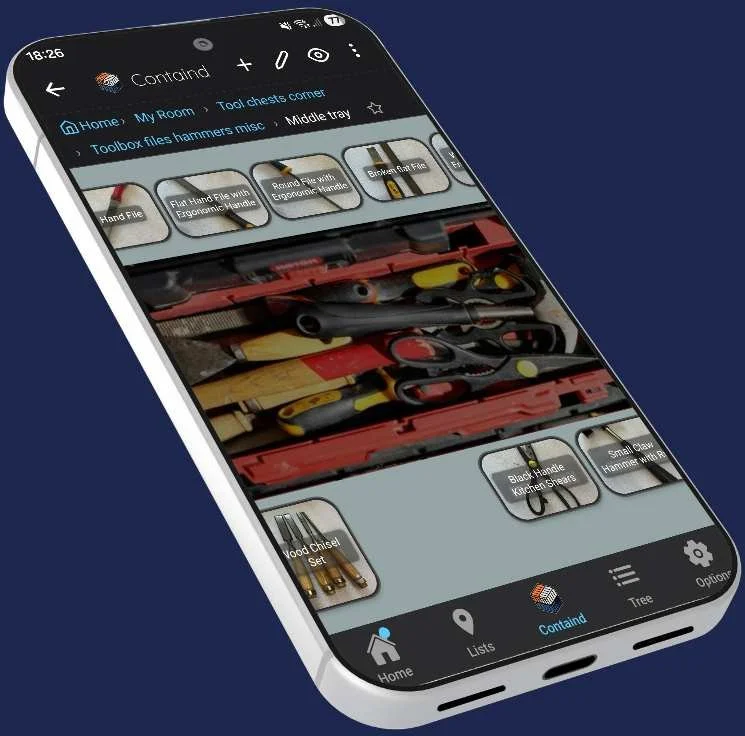







Limited functionality and only works in some browsers and only with experimental features enabled.
Limited functionality and only works in some browsers and only with experimental features enabled.
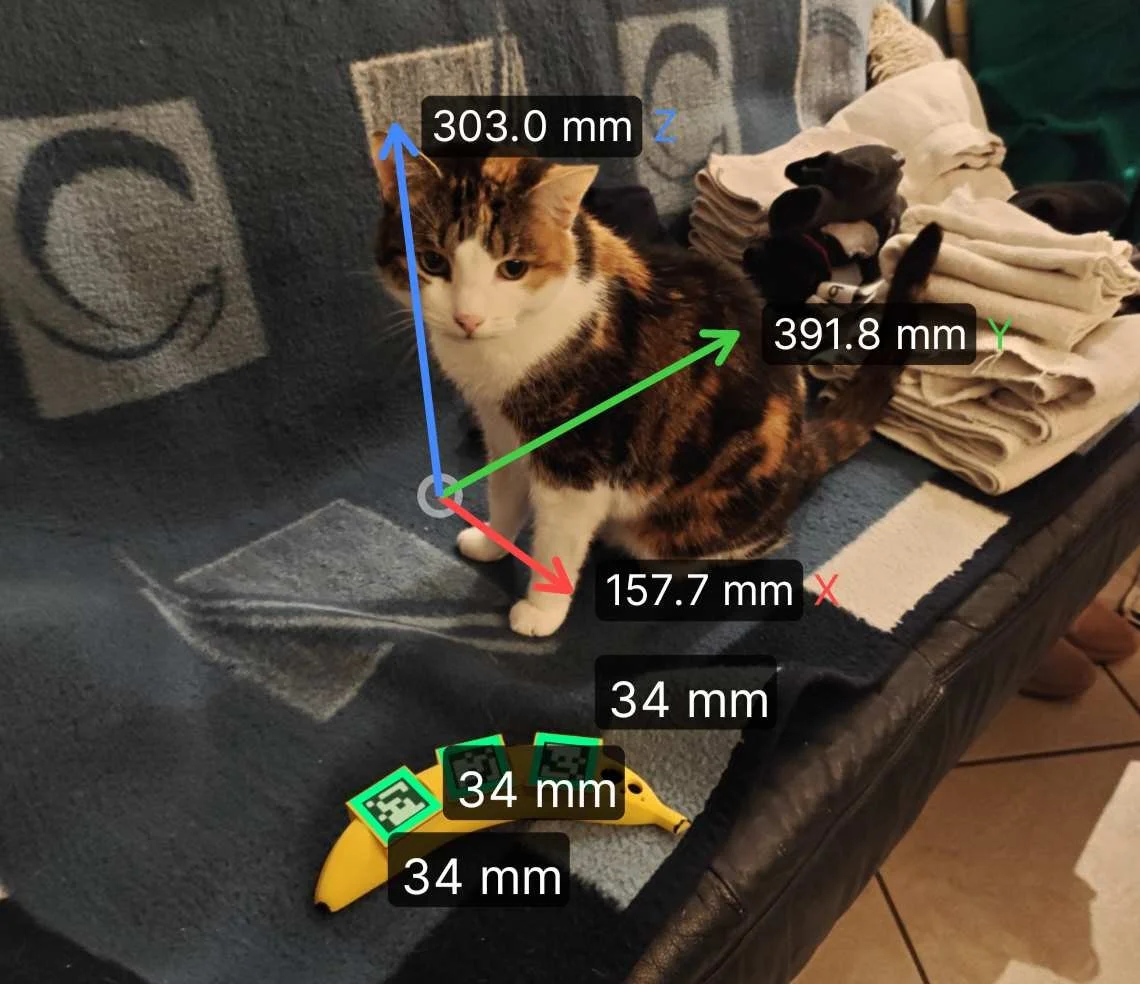
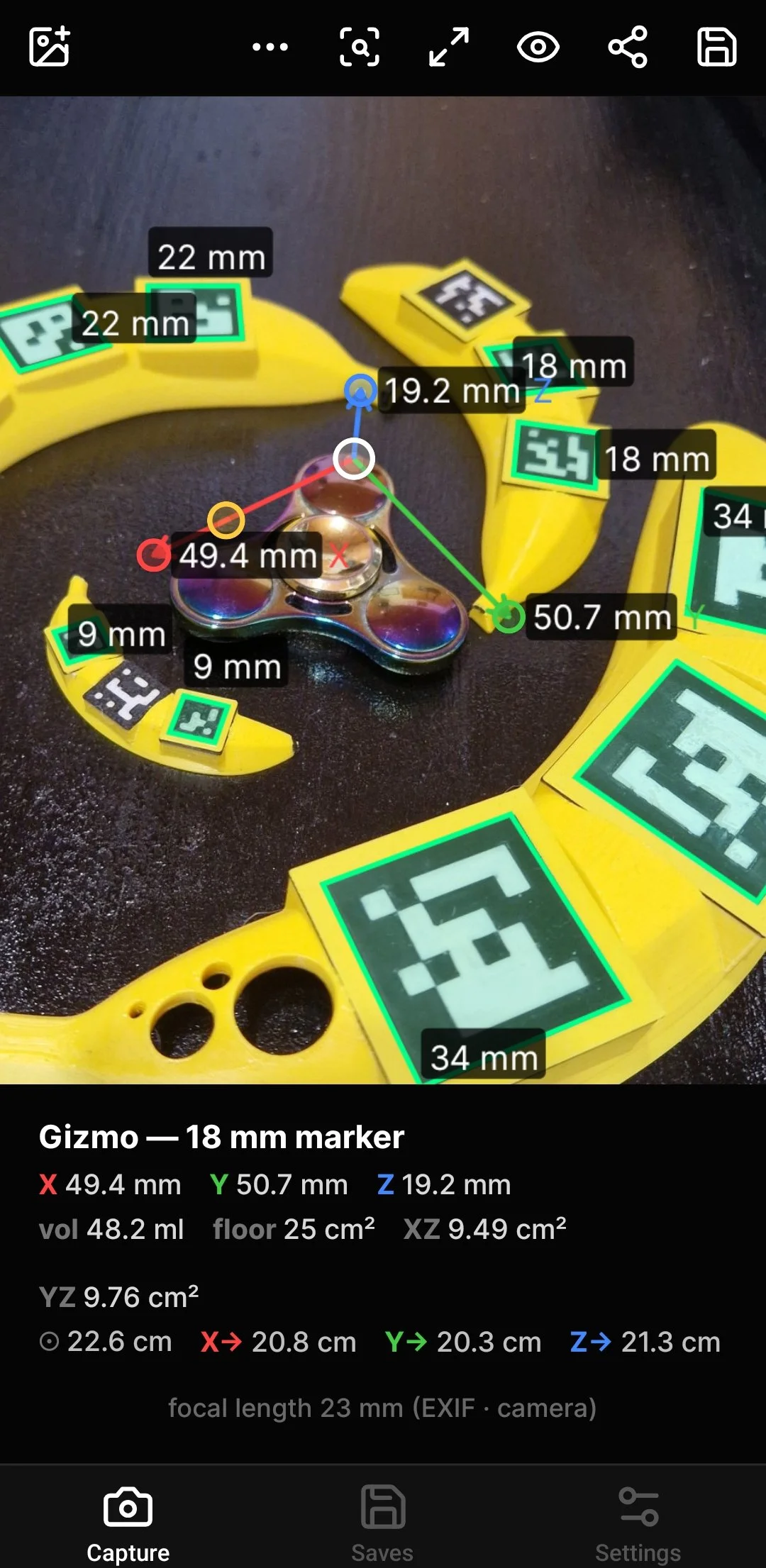
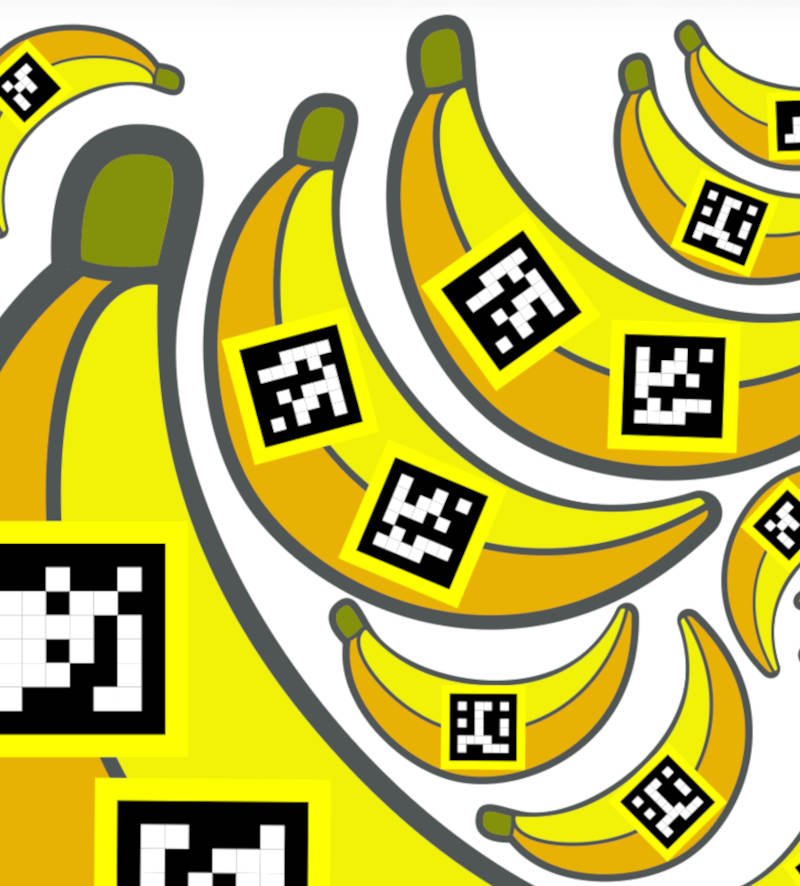
🍌Bananas 4 scale, to print
Helps Containd AI to get scale context. Needed for Banana Scale to work.
More to come…
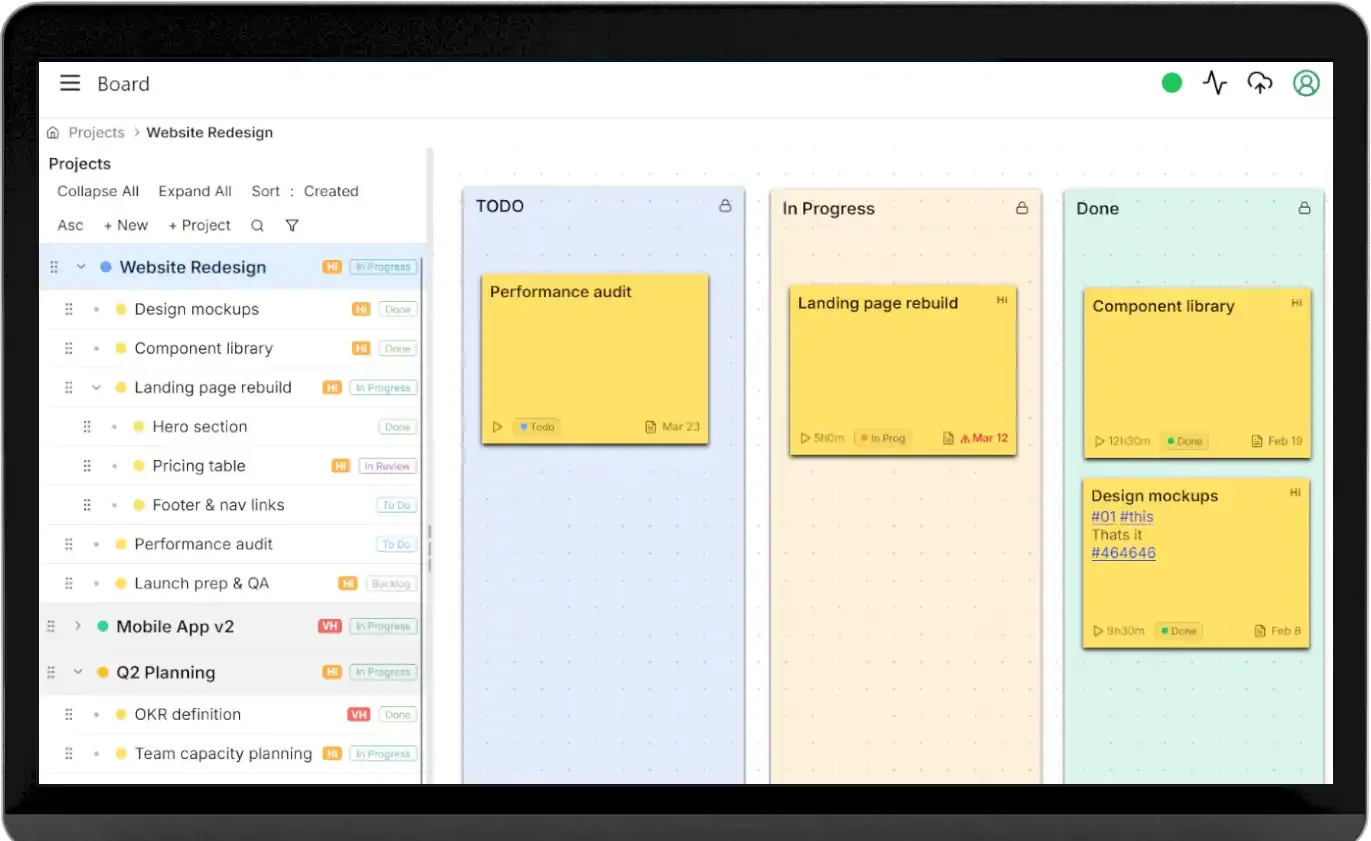
Containd ↔ Kanban, Kanban as web based editor…
We can export a List in Containd as csv which contains all data of the items without the photos.
We can import this in Kanban Containd and edit title, description and other data easily on any desktop computer.
From there we can export it again and import the data back to Contained, applying the changes.
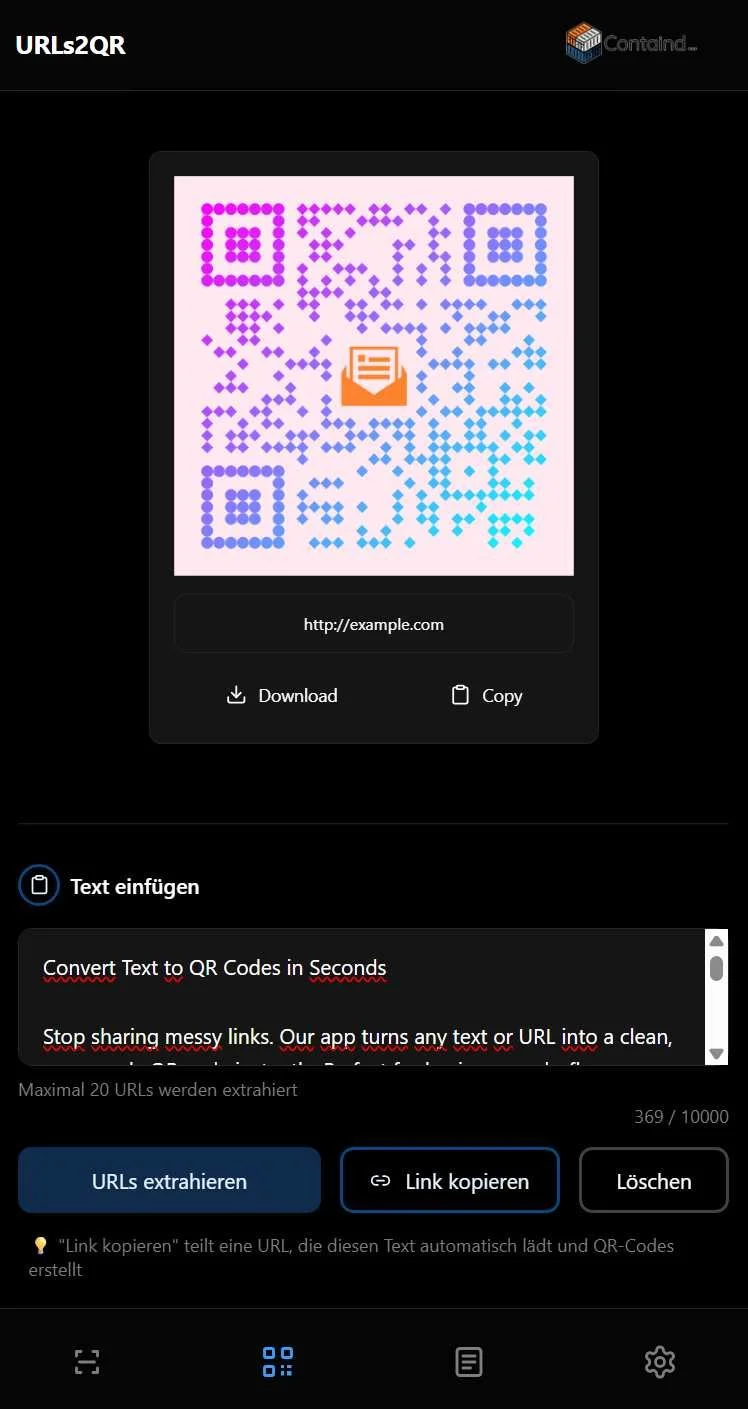
Containd ↔ URLs2QR Scanner
In containd you can easily create and store or share Labels for each item or container including QR codes.
If you wish to generate a more custom QR code, you can use the deep link in the Item View to the URLs2QR mobile app. This opens the link text in that app and you can customize the QR however you want.
On the other hand, you can scan each QR code generated with the Containd app with the Scanner integrated in URLs2QR and if will offer you a link to the Containd app that will directly open the item.
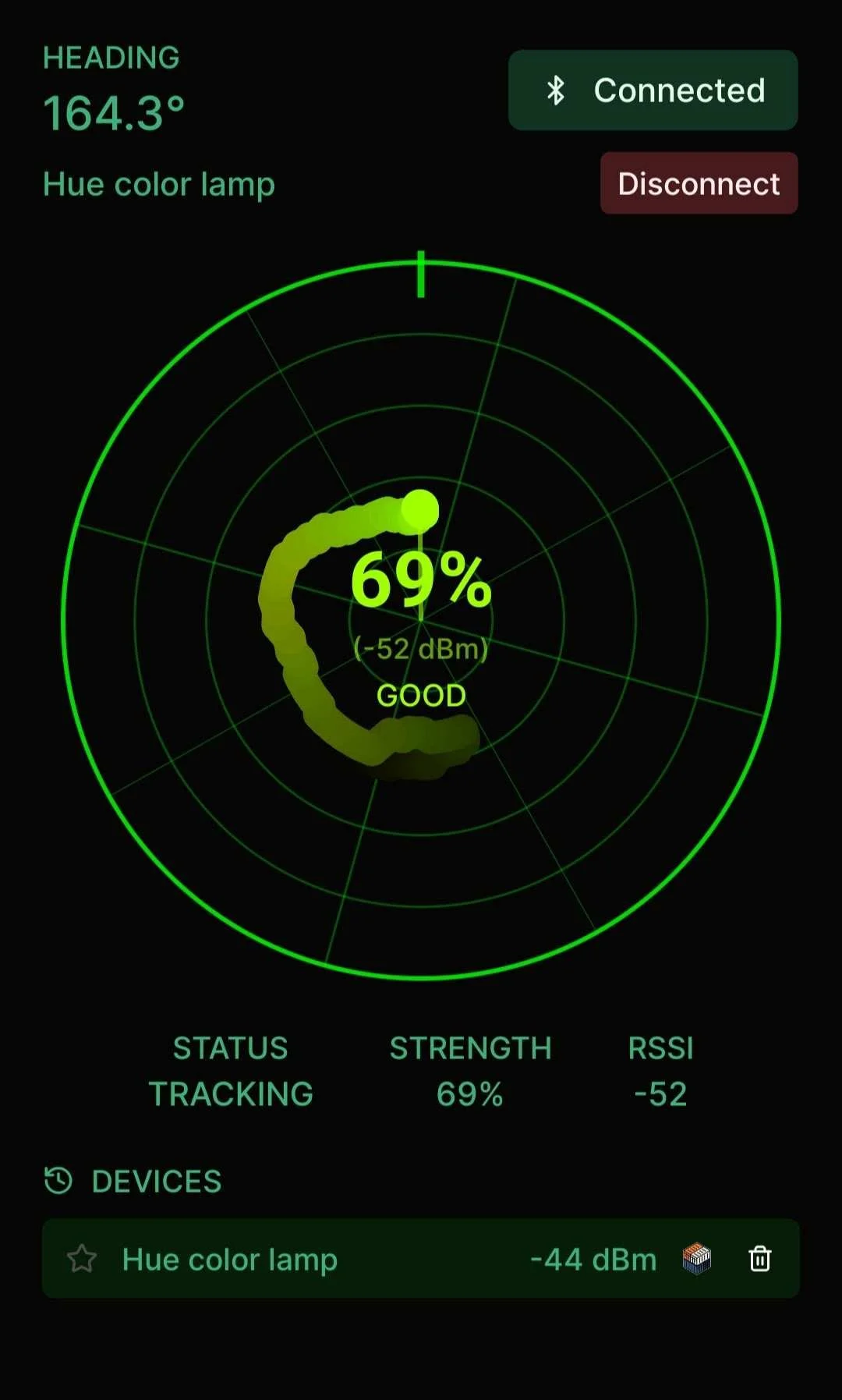
Containd ↔ Beacon Scout
In the Containd App you can store a lot of data with each item. That includes the possibility to store a BLE/ Bluetooth transponder code which you can add by scanning in the Containd App.
That code if its stored with an item, generates a deep link in the item detail view that opens the Beacon Scout app with the respective transponder data so you can scan for it in there.
On the other hand, you can tap the Containd link in the Beacon Scout app and it opens the Containd App and creates a new item automatically, where the transponder data is already filled in.

Containd → Link2Label (main direction)
Containd (or any sender) delivers a payload with:
• format: label-containd-ingress for standard labels, or label-containd-map-ingress for map + legend
• data: one item object or an array (map: index 0 = frame/title, further entries = regions with x, y, width, height)
• command: usually { "action": "fill_and_show", "templateId": "…", "mappingId": "default" }
• senderId: "containd" when the handoff should show Back to Containd
• returnDeepLink: e.g. containd://item/… — opened after print when auto-return is enabled
Delivery channels: deep link (link2label://ingress/…), HTTPS (/ingress/… on the web app), share sheet, paste, JSON file, or JPEG with embedded JSON (photo + data in one file).
When templateId matches a bundled template, Link2Label skips the picker and opens fill-review with fields already mapped.
Template presets (Containd → Link2Label)
Bundled templates ship with containdPresets so Containd can pick a layout by label type. Stable catalog IDs stay valid across app updates (included templates sync on launch; you can customize in place or copy to your own template).
Label type
Containd preset(s)
Example catalog IDs
Strip — compact tape, title + QR/barcode
strip-label
strip-qr-title-01-template, strip-qr-only-01-template, strip-barcode-01-template; legacy containd-strip-label
Box — container label with content tree
box-label
legacy containd-box-label (content tree + list)
Sticker — portrait sticker on Cat-style printers
sticker-label
sticker-qr-title-01-template, full-box-sticker-01-template, sticker-qr-title-share-01-template, full-box-share-sticker-01-template
Full-page / image
full-page, image-label
image-full-box-01-template, image-qr-sticker-01-template
Map + legend
map-label, often with full-page or sticker-label
map-full-page-01-template, map-full-page-square-01-template, map-full-page-portrait-template, map-sticker-01-template
Share-oriented stickers (*-share-* templates) layout QR/title for labels meant to be photographed back into Containd.
Map ingress: use label-containd-map-ingress. Attach or pick the plan image; region items carry coordinates and optional colors. After review, print or save like any other label.
Typical flow: select items in Containd → choose label type (strip / box / sticker / map) → Link2Label opens → preview → print on BLE thermal or PDF → Back to Containd (if returnDeepLink was sent).
Auto-print: fill_and_print with a saved Bluetooth printer can print and then open returnDeepLink. Set returnToSender: false to stay in Link2Label.
Link2Label → Containd (reverse)
Not a special API — standard share:
Finish the label in Link2Label (editor or fill-review).
Export PNG (or share from print/export).
Use the system share sheet → Containd.
Containd creates an item from the image (photo-based capture).
Best results with share preset templates that leave clear title/QR layout for Containd to read. Same PNG path works for archiving a label in any app that accepts images.
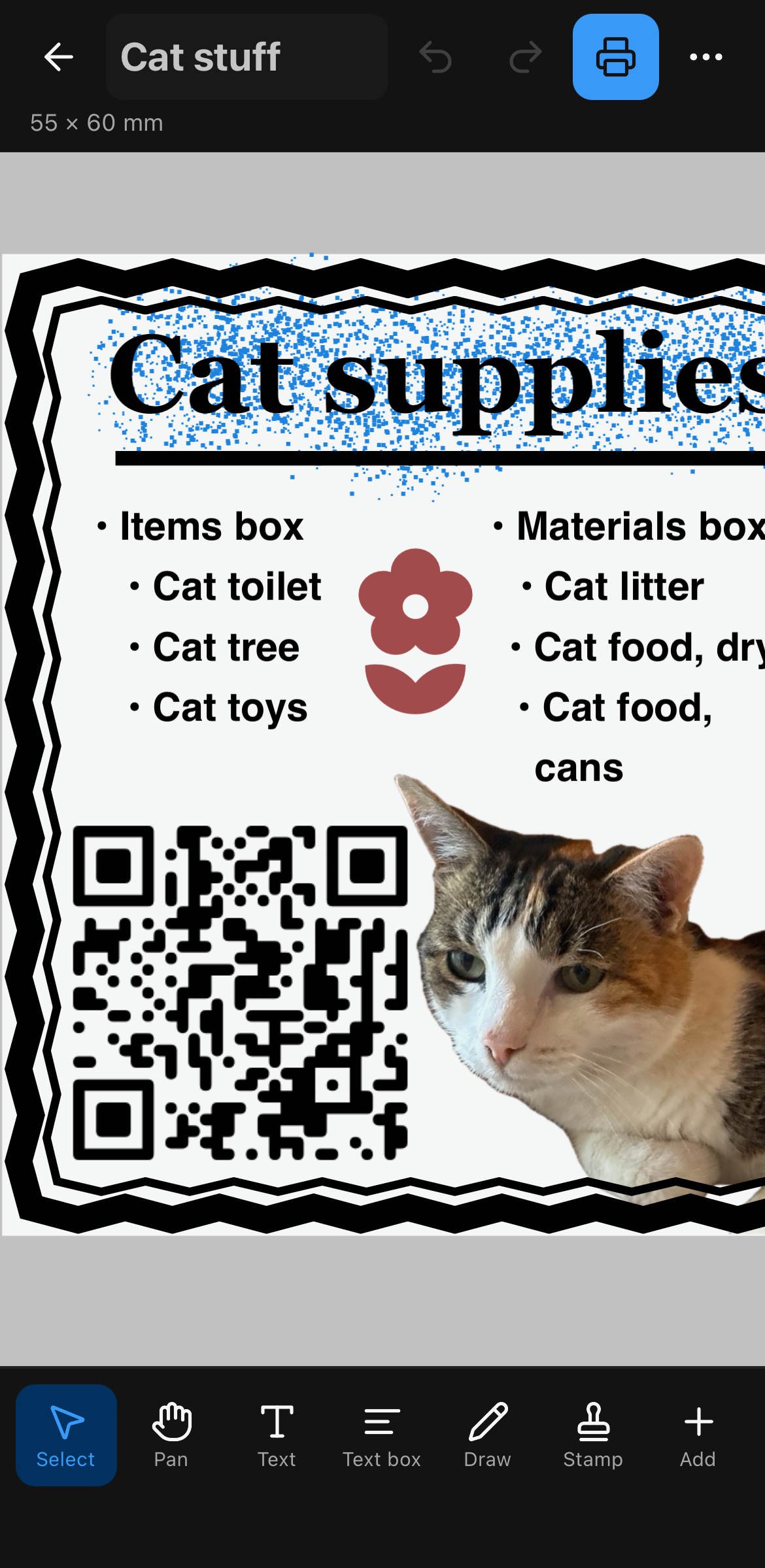
1. Trigger Link2Label from Containd. Canvas for mapping, item for labeling or cloud share for sharing. Share via image to the app or directly deep-link.
2. in the Link2Label app review the filled template, change template, save as label for later and/ or print. Back to Containd via Back button.
Or share box content for full box inventory label. Or label with pohto. Or Label for sticker. Or label for Strips.. All with QR code which Containd can scan back, included.
Containd ↔ Banana Scale
1 Share images between each other
2 Link in Banana Scale (for each Gizmo) to create a item in Containd with the dimensions filled in.
Containd ↔ Scale Banana
If you use the connected functions in Containd to have AI help fill in your inventory data, putting a scale banana next to it so its visible in the image will help the AI understand the dimensions of the item in the image better.
🍌
🍌
Banana Scale ↔ Scale Banana
The Banana Scale App only works to measure object sizes in images if there is a scale banana in the image. Or, at least, the respective ARUCO code.
It also requires the field of depth information in the exiff data of the image to be able to make correct measurements.